In-App Feedback Widget for Product Teams
Collect customer feedback directly inside your product with a simple in-app feedback widget. Let users submit feature requests, bug reports, improvements, or any other type of feedback without leaving your application.
What Is an In-App Feedback Widget?
An in-app feedback widget gives customers a direct way to send feedback while they are using your product. Instead of opening a separate feedback portal, users can open the widget directly from your application and submit their request in a few clicks.
With FeedbackPoster, administrators choose which feedback boards are available through the widget. Users can then select the type of feedback they want to submit, such as Feature Requests, Bugs, Improvements, Ideas, or any other workflow you define.
Each board can have its own custom fields, allowing you to collect the specific information you need for each type of feedback.
Add the Feedback Widget with One Script
Setting up the FeedbackPoster widget is simple. Add one JavaScript
snippet just before the closing </body> tag on
any page where you want the feedback widget to appear.
That's it. Once the script is added, the feedback widget becomes available inside your application. You don't need to build your own feedback form or create a separate feedback portal.
<script>
    src="https://feedbackposter-widget-url/runtime.js"
</script>

<script>
    FeedbackPoster("button", {
        label: "Give feedback",
        placement: "bottom-right",
        title: "Share your thoughts",
        description: "We read every submission"
    });
</script>
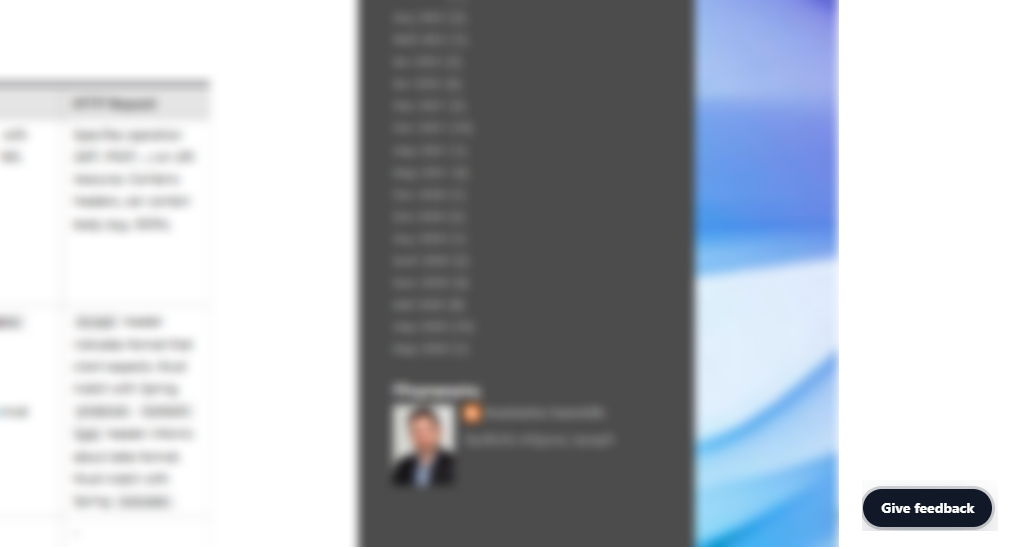
The widget can appear as a popup button in the bottom-right corner of your application or in another configurable position. Its label, placement, title and description can also be configured.
How the In-App Feedback Widget Works
Once installed, customers can submit feedback directly from your application without leaving the page they are using.
1. The User Opens the Feedback Widget
The user clicks the feedback button displayed inside your application. By default, the widget can appear in the bottom-right corner, while its position can be configured to fit your interface.
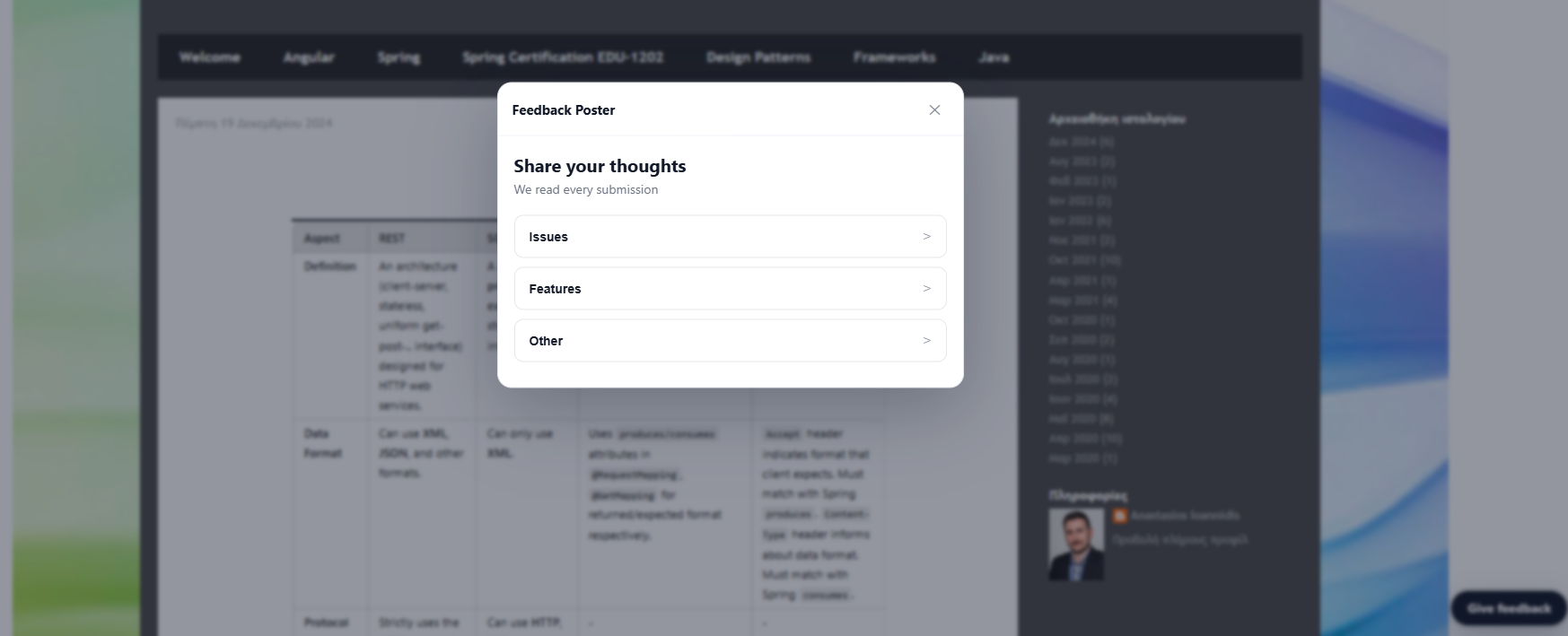
2. Choose a Feedback Board
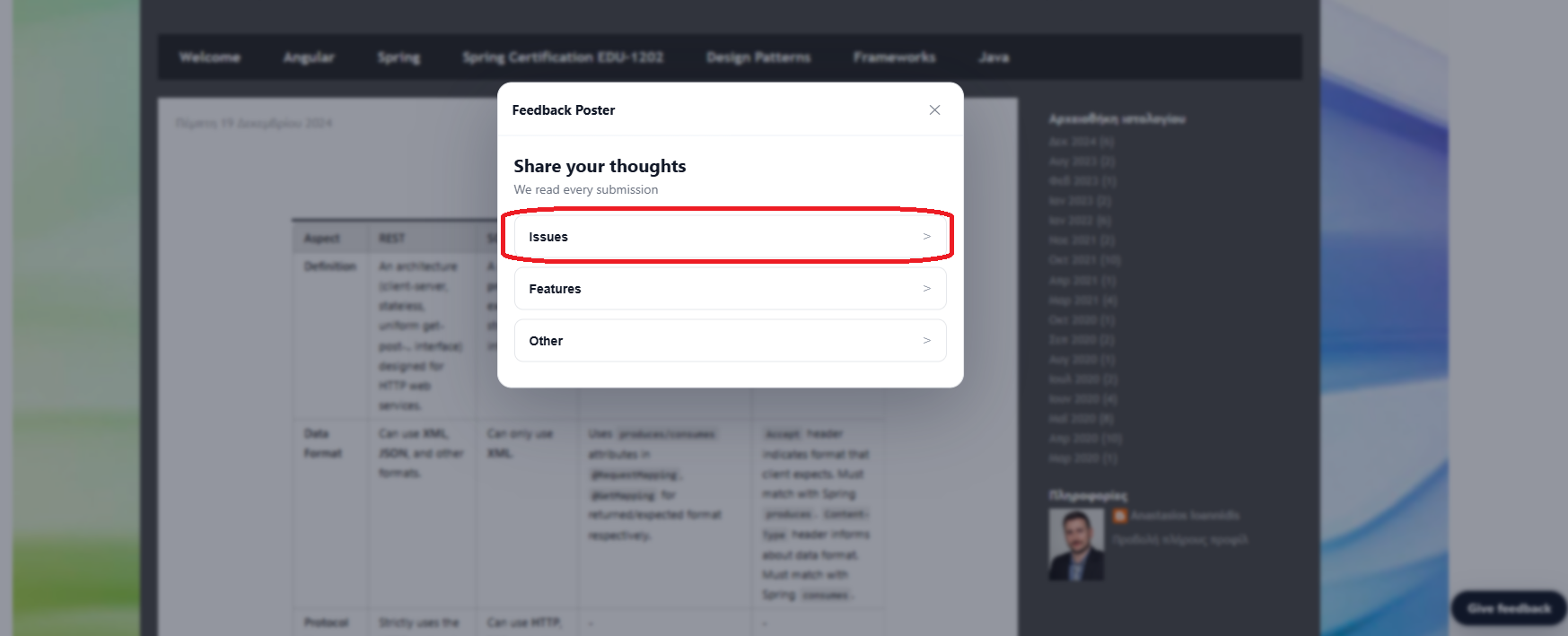
Administrators decide which feedback boards are available through the widget. Users can then choose the type of feedback they want to submit.
For example, your widget might contain Feature Requests, Bugs, Improvements, and Ideas. You can create and expose the boards that match your product and feedback workflow.
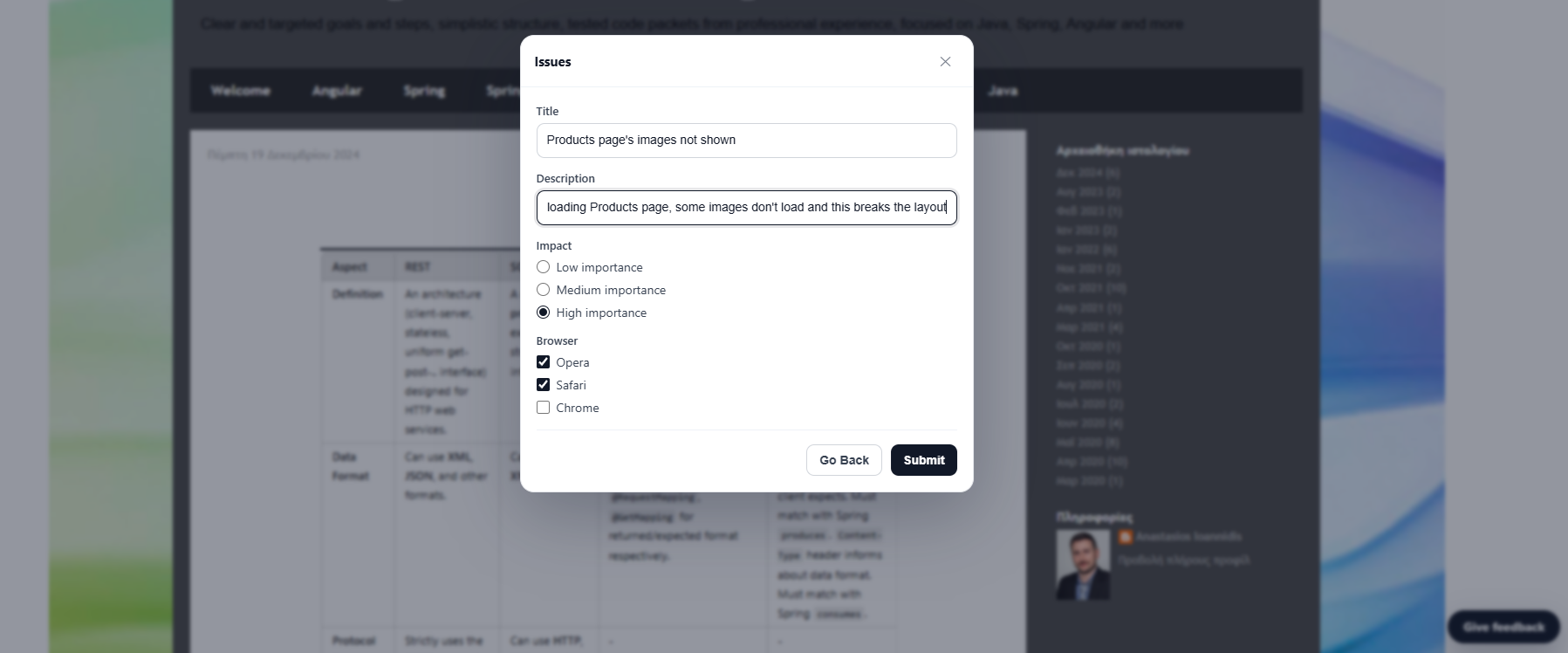
3. Fill Out the Feedback Form
After selecting a board, the user sees the feedback form configured for that board.
The form includes a title and description, along with the custom fields defined by the administrator for that board. This allows you to collect structured information instead of receiving feedback with no useful context.
For example, a Bug board could collect Browser, Device, or Product Area, while a Feature Request board could collect information such as Customer Type or Product Module.
4. Submit Feedback Directly to Your Admin Tool
When the user clicks Submit, the feedback is sent directly to your FeedbackPoster admin tool. Your team can then organize, filter, analyze, and prioritize the submission alongside your other customer feedback.
Anonymous Feedback with Spam Protection
Currently, feedback submitted through the widget is anonymous. Customers can submit feature requests, bug reports, and other feedback without creating an account or signing in.
Anonymous submissions make it easy for users to provide feedback without adding friction to the feedback process.
To help prevent misuse, FeedbackPoster includes a complete spam filtering mechanism designed to detect and block unwanted submissions.
Control Which Feedback Boards Customers See
The widget does not automatically expose every feedback board. Administrators choose exactly which boards are available to customers.
This lets you tailor the feedback experience to your product. You can expose Feature Requests and Bugs, for example, or create a broader set of options such as Ideas, Improvements, Questions, or any other feedback category.
Each board can have its own custom fields, so every feedback workflow can collect the information that matters for that particular type of submission.
Why Use an In-App Feedback Widget?
- Collect feedback without sending customers to a separate portal.
- Install the widget by adding one JavaScript snippet.
- Choose exactly which feedback boards customers can access.
- Collect structured information with board-specific custom fields.
- Allow anonymous submissions without requiring users to sign in.
- Reduce spam and misuse with built-in spam filtering.
- Send submitted feedback directly into your FeedbackPoster admin tool.
Complete Your Feedback Workflow
The in-app feedback widget works together with custom fields, advanced filtering, and analytics to turn customer feedback into structured product insights.
Custom Feedback Fields
Collect the specific information you need with custom fields for every feedback board.
Advanced Feedback Filtering
Filter structured feedback using custom fields and other feedback criteria.
Feedback Analytics
Analyze customer feedback and identify trends using structured feedback data.